

Quick Take: A Fast, Modular Printer — But Know What You’re Buying
The Anycubic Kobra 4 offers 600mm/s speed claims, LeviQ 3.0 auto-leveling, and an optional path to multi-color printing via the ACE 2 Pro system. However, it launches into a confusing lineup that already includes the Kobra X — a printer with the same build volume, same speed, and built-in multi-color. Read our full analysis before you pre-order.
Anycubic Kobra X (Available Today)

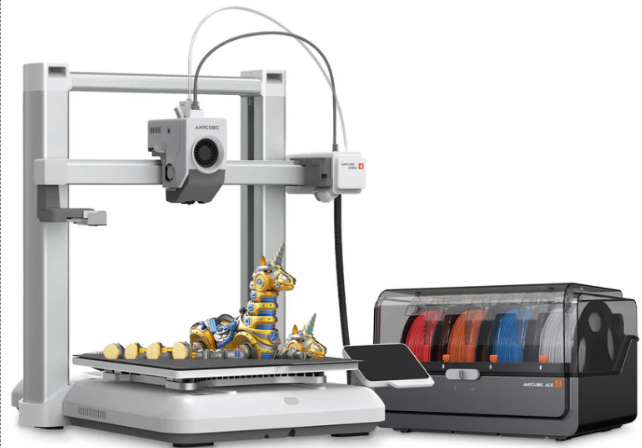
Table of Contents
- What Is the Anycubic Kobra 4?
- Key Specifications
- What’s New vs Previous Kobra Printers
- Kobra 4 vs Kobra X (Critical Comparison)
- Unboxing and What’s in the Box
- Build Quality and Design
- Hardware Deep Dive
- Software: Slicer and App
- Print Quality Expectations
- Is 600mm/s Realistic?
- Multi-Color With ACE 2 Pro
- Supported Materials
- Real-World Pros and Cons
- vs Competitors
- Who Should Buy?
- FAQ
- Final Verdict
A Quick Note Before We Start
We’d rather tell you that plainly than make something up. What we can give you is the most thorough breakdown anywhere of what the Kobra 4 actually is, how it compares to the printers you’re probably also considering, exactly where it fits in Anycubic’s confusingly large lineup, and what to watch for once real units start landing on desks (ours included — we’ll update this guide the moment we’ve put it through its paces).
If you want a printer you can buy and test today, jump to our Kobra 4 vs Kobra X section, because that comparison might actually change your mind about which one to order. For a broader look at options across price points, our how to choose a 3D printer guide walks through the decision framework we use ourselves.
Quick Verdict (For Skimmers)
✓ Buy If
- You want a fast, plug-and-play printer for PLA and PETG
- You like the idea of auto-calibration and don’t want to fight your bed
- You’re fine starting with single-color and adding multi-color later via the ACE 2 Pro
- You want to be an early adopter and don’t mind being part of the first wave of buyers
✕ Wait or Avoid If
- You want built-in multi-color out of the box (the Kobra X already does this)
- You’re not comfortable buying a printer before independent reviews exist
- You dislike proprietary ecosystems and want full freedom to swap hotends or run third-party slicers
- You need a large-format build volume (260×260×260mm is mid-size, not massive)
That overlap is the single most important thing to understand before you spend a dollar, and we walk through it in detail below. If you’re set on buying an Anycubic printer in this size class today, read the Kobra 4 vs Kobra X section before you check out — it could save you money or steer you toward the better fit for how you actually print.
Want to compare with other options in this price range? See our full breakdown of the best 3D printers under $500.
What Is the Anycubic Kobra 4?
The Anycubic Kobra 4 is the newest entry in Anycubic’s high-speed FDM 3D printer lineup, sitting alongside (and, confusingly, somewhat on top of) the Kobra X and Kobra 3 series. It’s a bedslinger-style printer — meaning the bed moves on the Y-axis while the toolhead handles X and Z — built around a 260×260×260mm print volume, Anycubic’s LeviQ 3.0 auto-leveling system, and a marketed top speed of 600mm/s.
Out of the box, the standard Kobra 4 prints in a single color. If you want multi-color capability, you’ll need the Kobra 4 Combo, which bundles one ACE 2 Pro filament feeder for up to 4-color printing, or you can add a second ACE 2 Pro later to unlock 8-color printing. That’s an important distinction we’ll come back to repeatedly in this Anycubic Kobra 4 review, because it directly affects what you should actually buy.
Anycubic is positioning the Kobra 4 around three pillars: speed, near-silent operation, and ease of use for people who don’t want to spend their first month fighting bed leveling and retraction settings instead of actually printing things. If you’re new to 3D printing, those are legitimately useful focus areas — but they only matter if the printer actually delivers on them, which is exactly what independent testing will reveal.
Key Specifications
| Specification | Anycubic Kobra 4 |
|---|---|
| Build Volume | 260 × 260 × 260mm |
| Recommended Speed | 300 mm/s |
| Max Speed (claimed) | 600 mm/s |
| Bed Surface | Hardened steel, PEI-coated |
| Max Bed Temp | 100°C |
| Auto Leveling | LeviQ 3.0 |
| Multi-Color Support | No (standalone) — up to 4 colors with one ACE 2 Pro (Combo), up to 8 with two |
| Onboard Camera | Yes (720p, included on Combo) |
| Connectivity | Wi-Fi, app, USB |
| Nozzle | 0.4mm standard (0.25 / 0.6 / 0.8mm optional) |
| Price | Check Price on Amazon → |
What’s New Compared to Previous Kobra Printers
Kobra 4 vs Kobra 3
The Kobra 3 introduced Anycubic’s first real push into accessible multi-color printing via the original ACE Pro system. The Kobra 4 carries that same high-speed, auto-leveling DNA forward but pairs with the newer ACE 2 Pro instead. The practical upgrade here is feed speed:
If you’ve ever sat there watching a multicolor print pause mid-layer to swap filament, that’s the kind of improvement you’ll actually notice during a long multicolor job — less idle time, less opportunity for oozing or stringing at the transition point. For more on multi-color 3D printing systems, our dedicated guide breaks down all the major options.
Kobra 4 vs Kobra X: The Comparison That Actually Matters
| Feature | Kobra 4 | Kobra X |
|---|---|---|
| Build Volume | 260×260×260mm | 260×260×260mm |
| Max Speed | 600mm/s (claimed) | 600mm/s (claimed) |
| Multi-Color (Base Unit) | ✕ No | ✓ Yes — 4 colors standard |
| Max Multi-Color | 8 colors (2× ACE 2 Pro + hub) | 19 colors (stacked ACE 2 Pro units) |
| Auto Leveling | LeviQ 3.0 | LeviQ 3.0 |
| Price | Check Price → | Check Price → |
The Key Difference
- Kobra X: Multi-color is built into the base machine. Four filament slots ship standard, and you can stack additional ACE 2 Pro units to scale up to 19 total colors. If you know you want multi-color printing on day one, the Kobra X gets you there without buying a second box.
- Kobra 4: Ships single-color standard. You add multi-color by buying the Kobra 4 Combo (one ACE 2 Pro, up to 4 colors) or by purchasing the ACE 2 Pro separately later.
Anycubic’s own Kobra 4 Combo product page acknowledges this directly, noting that the Kobra X Combo includes a more advanced toolhead configuration than the Kobra 4 Combo, and that the Kobra X scales to 19 colors against the Kobra 4’s 8-color ceiling (with two ACE 2 Pro units and an additional filament hub).
- If you only ever print single-color, the standalone Kobra 4 is the leaner, possibly cheaper way to get the same speed and leveling tech without paying for multi-color hardware you won’t use.
- If you’re not sure yet whether you’ll want multi-color, the Kobra 4’s modular approach lets you start cheap and add the ACE 2 Pro only once you actually want it — rather than committing to the Kobra X’s built-in system from day one.
If you already know multi-color printing is a must-have, the Kobra X is very likely the more efficient buy, since you’re not paying twice for hardware. If you print mostly single-color models, miniatures you paint by hand, or functional parts where color-matching the filament is good enough, the standalone Kobra 4 is the more focused — and probably more affordable — choice.
Already decided the Kobra X is the better fit? It’s available now with multi-color built in.
Early-bird pricing may not last once independent reviews publish
Unboxing and What’s in the Box
The standard Kobra 4 box includes:
- Kobra 4 printer
- Spool holder
- M3×6 screws (4pcs)
- PTFE/Teflon tube (4pcs)
- Signal cable and power cord
- Nozzle sizes: 4.0 / 2.5 / 2.0 / 1.5mm hex keys plus magnetic tray
- Filament samples
- Nozzle cleaner, application brush, grease
- Cable clip, decorative covers
- User manual
The Kobra 4 Combo adds one ACE 2 Pro unit to that list, which is the piece of hardware that unlocks multi-color printing.
Build Quality and Design
Anycubic is leaning hard into quiet operation as a selling point for the Kobra 4, and on paper that tracks with the direction the rest of their lineup has moved — the ACE 2 Pro, for instance, is rated by Anycubic’s own lab at around 48dB during enclosed printing, climbing to roughly 55dB when drying and printing simultaneously. If that holds for the Kobra 4’s own motion system, it would put the printer comfortably in “can run in the next room without bothering anyone” territory rather than the buzzy, high-pitched whine that gave early high-speed FDM printers a bad reputation.
Hardware Deep Dive
Extruder and Hotend
The Kobra 4 uses a direct drive setup, which is generally the better choice over Bowden-style extrusion for printing flexible materials like TPU and for maintaining consistent extrusion at high speed — less distance for the filament to flex or compress between the motor and the nozzle.
Heated Bed
The bed is a hardened steel plate with a PEI coating rated to 100°C, which covers PLA, PLA+, and PETG comfortably. If you’re hoping to print ABS or ASA regularly, 100°C is on the lower end for ideal first-layer adhesion with those materials, so factor that into your decision if engineering filaments are a priority for you. For context, see our guide to the best 3D printers for ABS.
LeviQ 3.0 Auto-Leveling
This is arguably the headline feature for anyone who’s been burned by manual bed leveling before. Anycubic describes the new-generation leveling algorithm as optimizing X, Y, and Z-axis repeat precision using multi-point data modeling to automatically correct small deviations — plus improved thermal uniformity across the heatbed surface for more consistent first layers edge to edge.
In plain terms: more measurement points, smarter correction, and (in theory) less manual babysitting of your first layer than older single-point or basic mesh leveling systems required. If you’ve ever spent an evening troubleshooting 3D printing issues related to adhesion, this alone could be worth the price of entry.
We’ll verify how that translates into real first-layer consistency once we’ve run our own leveling tests — but if Anycubic’s claims hold up even partially, this is a genuine quality-of-life upgrade over manual leveling or older auto-level systems.
Free: First Layer Calibration Cheat Sheet
Get our printable guide to diagnosing and fixing first-layer problems — even with auto-leveling, knowing what to look for saves hours of frustration.
Software: Anycubic Slicer Next and the App
The Kobra 4 runs on Anycubic Slicer Next, the company’s in-house slicer that’s also used across the rest of the current Kobra lineup. It comes with pre-built material profiles, which is genuinely helpful if you’re new to 3D printing and don’t want to spend your first week tuning retraction and flow settings from scratch. For a deeper look at slicer options, our best slicer for 3D printing guide compares Anycubic’s software against OrcaSlicer, PrusaSlicer, and others.
The companion Anycubic App handles remote monitoring (especially useful if the Combo’s onboard camera is included), remote print starts, and progress notifications — handy if you like to start a print before heading to work and check in on it from your phone rather than hoping for the best.
What We Expect From Print Quality (and How We’ll Test It)
We’re not going to publish fake benchy times or invented caliper measurements — that helps nobody and it’s exactly the kind of thing that makes buying guides untrustworthy. Here’s what we’ll actually be testing the moment our review unit arrives, and what to look for in any review claiming hands-on results:
-
Benchy test — print time at default and high-speed profiles, plus visual inspection of the hull and chimney for ringing or ghosting or layer shift
-
Dimensional accuracy — a printed calibration cube measured with digital calipers, not eyeballed
-
Overhang and bridging tests — where speed-focused printers often start to show their limits
-
An articulated model (we like the classic flexi-dragon for this) to check joint clearance and how clean small interlocking parts come out
-
A functional print — something with screw threads or a snap-fit, because pretty prints and useful prints aren’t always the same thing
-
A larger build-volume print to see how consistency holds up over a longer, taller job — relevant if you’re comparing against large-format 3D printers
Is 600mm/s Realistic? The Speed Claim, Explained
This is one of the most searched questions around any high-speed printer launch, and it deserves a straight answer rather than marketing-speak.
600mm/s is almost always a maximum theoretical speed — the number the motion system can physically hit in short bursts, not a number you’ll see across an entire print. Anycubic itself lists the recommended speed for the Kobra 4 at 300mm/s, which is the more honest number for what you’ll realistically use day-to-day for good-quality prints. The 600mm/s figure matters more as a ceiling — it tells you the hardware has headroom, which can translate into faster prints on simpler geometry (think: a phone stand) even if a detailed miniature still prints closer to that 300mm/s recommended range for the sake of surface quality.
Context from Anycubic’s recent track record: the Kobra X carries the identical 600mm/s claim with a realistic, sustained-use gain closer to roughly double the speed of older “fast” 3D printers, not 600mm/s sustained throughout a print. We’d expect the Kobra 4 to perform similarly, but we’ll confirm with our own side-by-side timing once we can put a stopwatch on it ourselves rather than repeat a number off a spec sheet.
For a broader understanding of what speed claims actually mean in practice — and how different CoreXY vs bedslinger architectures handle speed differently — our architecture guide breaks it down.
Multi-Color Printing With the ACE 2 Pro
How the System Works
The ACE 2 Pro is an external filament hub that feeds multiple spools into the Kobra 4’s single toolhead, swapping materials at designated layer transitions. It’s important to be precise about this: the Kobra 4 standalone unit does not support multi-color printing on its own. You need at least one ACE 2 Pro (included in the Kobra 4 Combo) for 4-color printing, or two units plus a filament hub for the 8-color maximum.
What Changed From the Original ACE Pro
If you’ve researched Anycubic’s older ACE Pro system, here’s what’s genuinely new in the ACE 2 Pro generation:
| Feature | ACE Pro (Gen 1) | ACE 2 Pro |
|---|---|---|
| Feeding Speed | 25mm/s | 50mm/s |
| Color Change Time | ~84 seconds | ~56 seconds |
| Dry While Printing | ✕ | ✓ (up to 65°C) |
| Motor Type | Brushed | Brushless |
| Moisture Sensor | ✕ | ✓ |
| Sealed Chamber | ✕ | ✓ (electromagnetic valve) |
The active drying capability is particularly notable if you live somewhere humid and your PETG or nylon tends to absorb moisture between prints. The sealed chamber with electromagnetic moisture valve is designed to keep filament dry during the entire print job, not just while it’s sitting on the spool. For more on why filament drying matters, our best filament dryer guide covers the science and top picks.
Reliability — What to Watch For
The Filament Waste Conversation Nobody Skips
If you’re new to multi-color FDM printing, know this going in: every color change generates purge waste — the small blob or tower of filament the printer extrudes to clear the old color before the new one comes through clean. This is true of every multi-color system on the market, not just Anycubic’s, but it’s a real ongoing cost and a real pile of plastic scrap you’ll be dealing with regularly. Faster material changes on the ACE 2 Pro should reduce waste volume somewhat compared to the original ACE Pro simply by shortening the transition window, but don’t go into multi-color printing expecting zero waste — budget for it the same way you’d budget for extra filament spools.
Is It Better Than AMS-Style Systems?
Compared to Bambu Lab’s AMS, Anycubic’s ACE-series systems lean harder into active drying as a core feature rather than a bolt-on, while AMS-style systems tend to prioritize buffer management and swap speed. Which is “better” depends on what you print most — if you work with hygroscopic filaments like nylon or PETG regularly, the active drying focus is a genuine practical advantage; if pure swap speed and tight ecosystem polish matter more to you, that’s a closer call.
Comparing multi-color systems? Our deep-dive on the best multicolor 3D printers breaks down AMS, ACE, and every major option.
Supported Materials
| Material | Notes | Best Filament Picks |
|---|---|---|
| PLA | The Kobra 4’s sweet spot — easiest results, fastest tuning | See our ranked picks → |
| PLA+ | Slightly tougher than standard PLA, similar print settings | Polymaker PolyMax PLA Review → |
| PETG | Good results expected; watch bed temp ceiling of 100°C | Best PETG Filament Guide → |
| TPU | Direct drive setup should handle flexibles reasonably well | Best TPU-Compatible Printers → |
| PLA-CF | Carbon-fiber blends are more abrasive — hardened nozzle matters here | Strongest Filament Guide → |
| PETG-CF | Same abrasion consideration as PLA-CF | Best Nozzle Upgrades → |
We’ll add our own setting recommendations and real print results for each material once testing is complete. In the meantime, if you’re deciding between filament types, our PETG vs PLA comparison and TPU vs PLA guide are solid starting points.
Reliability: What We’ll Be Tracking
Long-term reliability is exactly the kind of thing that can’t be honestly assessed from a spec sheet, and we’re not going to pretend otherwise. Once our unit has logged meaningful print hours, we’ll update this section with real findings on:
- Print failure rate across varied geometries
- Any clogging tendencies, especially with PLA-CF or PETG-CF — if this becomes an issue, our unclog guide and nozzle cleaning guide will walk you through fixes
- Layer shift consistency at higher speeds
- How much manual maintenance the printer actually needs versus how little Anycubic claims it needs
Real-World Pros and Cons
What We Like (Based on Specs and Track Record)
- Fast motion system, on paper. A 600mm/s ceiling with a sensible 300mm/s recommended speed suggests Anycubic is being more realistic about everyday performance than the headline number alone implies.
- LeviQ 3.0 auto-leveling. If the multi-point modeling and improved bed thermal uniformity perform as described, first-layer headaches — the single biggest frustration for beginners — should be largely a non-issue.
- Quieter operation. Based on Anycubic’s own measurements for the related ACE 2 Pro hardware, this generation appears to be meaningfully quieter than older high-speed printers, which matters if your printer lives somewhere you also sleep, work, or relax.
- A genuine upgrade path. Starting with the standalone Kobra 4 and adding an ACE 2 Pro later means you’re not locked into paying for multi-color capability before you know you want it.
What We Don’t Like
- Confusing lineup positioning. The Kobra 4 launches with the same build volume and the same speed claim as the already-available Kobra X, but with a less integrated multi-color story. Anycubic’s own product FAQ acknowledges the Kobra X has the more advanced configuration — which raises the fair question of who the Kobra 4 is specifically for.
- Filament waste with multi-color. As covered above, purge waste is unavoidable with any ACE-style swap system. Budget for it.
- Ecosystem lock-in. Anycubic Slicer Next is solid for beginners but more closed than fully open ecosystems, and the ACE 2 Pro is only confirmed compatible with specific recent Anycubic models — don’t expect to mix and match freely with non-Anycubic hardware.
- No independent reliability data yet. This is the honest, unavoidable con of buying any printer this early. Early-bird pricing is real, but so is early-adopter risk.
Anycubic Kobra 4 vs Competitors
We’ve deliberately swapped one printer out of the typical comparison set here. The Elegoo Centauri Carbon is often lumped into these comparisons, but it’s actually an enclosed CoreXY printer at a different price and architecture tier — closer to a Bambu Lab P1S or X1C competitor than a Kobra 4 competitor. For an apples-to-apples bedslinger comparison, the Elegoo Neptune 4 Pro is the far more relevant match.
| Printer | Type | Build Volume | Max Speed | Multi-Color | Best For |
|---|---|---|---|---|---|
| Anycubic Kobra 4 | Bedslinger | 260×260×260mm | 600mm/s (300 rec.) | Optional (ACE 2 Pro, up to 8) | Beginners wanting speed + leveling, flexible on color |
| Anycubic Kobra X | Bedslinger | 260×260×260mm | 600mm/s (claimed) | ✓ Built-in, 4 std (up to 19) | Anyone who wants multi-color from day one |
| Bambu Lab A1 | Bedslinger | 256×256×256mm | 500mm/s | Optional (AMS lite) | Polished ecosystem, strong community support |
| Elegoo Neptune 4 Pro | Bedslinger | 225×225×265mm | 500mm/s | ✕ No | Budget-focused buyers, open ecosystem |
| Elegoo Centauri Carbon | Enclosed CoreXY | 256×256×256mm | 500mm/s | ✕ No (as of writing) | Enclosed chamber & CoreXY precision |
What the Kobra 4 brings that’s genuinely its own: Anycubic’s specific combination of LeviQ 3.0 leveling, a clear stepping-stone path into multi-color via the ACE 2 Pro, and early-bird pricing that — if it holds anywhere close to its current early registration window — could make it one of the more affordable ways into this performance tier once it ships.
If You Want Multi-Color Now
Anycubic Kobra X
Built-in 4-color printing, same 260³ volume, same speed. Available today — no waiting for reviews.
Best Ecosystem
Bambu Lab A1
The polished benchmark. Open slicer support, massive community, AMS lite for multi-color.
Best Budget Value
Elegoo Neptune 4 Pro
Proven reliability, open ecosystem, and one of the best price-to-performance ratios in FDM.
Who Should Buy the Anycubic Kobra 4?
New to 3D Printing?
If you’ve never owned a 3D printer and want something that minimizes setup friction, the auto-leveling system and pre-built slicer profiles are exactly the kind of guardrails that make the learning curve less painful. Just go in with realistic expectations about early-adopter risk. Our beginner printer guide covers more options in this category.
Mostly Print One Color?
Miniature painters, prop makers, and anyone who color-matches filament rather than relying on the printer to blend colors will likely get full value from the standalone Kobra 4 without paying for multi-color hardware they won’t use. If you print miniatures specifically, our best filament for miniatures guide pairs well with this use case.
Want Multi-Color Later?
The ability to start with the standalone unit and add an ACE 2 Pro down the line is a real advantage if your budget is tight right now but you suspect you’ll want multi-color eventually.
- Anyone who wants multi-color printing out of the box without buying separate hardware (get the Kobra X instead)
- Anyone who needs a large-format build volume well beyond 260mm — see our large-format printer guide
- Anyone uncomfortable being an early adopter of unreviewed hardware
- Anyone who regularly prints high-temp engineering filaments needing more than a 100°C bed
Frequently Asked Questions
Based on specs alone, it looks like a competent, fast, beginner-friendly printer with genuinely useful auto-leveling tech. Whether it’s worth buying right now depends on your comfort with being an early adopter, since independent reliability testing doesn’t exist yet at the time of this guide. If you can wait a few weeks for real-world reviews (including ours), that’s the lower-risk path. For printers you can buy with full confidence today, see our best 3D printer rankings.
Neither is strictly “better” — they’re built for different priorities. The Kobra X has multi-color printing built in standard and scales further (up to 19 colors). The Kobra 4 starts as a single-color machine and adds multi-color modularly through the ACE 2 Pro. If you know you want multi-color now, the Kobra X is likely the more efficient buy. If you’re not sure yet, or print mostly single-color, the Kobra 4 gives you that option without forcing the upfront cost.
Yes — the direct drive extruder setup is well suited to flexible filaments like TPU, though we’ll confirm real-world print quality once we’ve tested it ourselves. If TPU is a major priority for you, our best 3D printer for TPU guide covers the top options.
Not on its own. You’ll need the Kobra 4 Combo (includes one ACE 2 Pro for up to 4 colors) or to add an ACE 2 Pro separately. Two ACE 2 Pro units plus a filament hub bring it to 8 colors. For the full multi-color landscape, see our multicolor printer guide.
On paper, yes — LeviQ 3.0 auto-leveling and pre-built slicer profiles are aimed squarely at reducing the early frustration that turns a lot of new owners away from 3D printing. We’ll have a clearer answer on real-world ease of use once we’ve gone through setup ourselves. If you want guaranteed beginner-friendly options right now, our best 3D printer for beginners guide has thoroughly tested picks.
Anycubic markets a 600mm/s maximum speed with a 300mm/s recommended speed for everyday printing. Treat 600mm/s as a ceiling the hardware can technically reach, not a number you’ll see sustained through a typical detailed print. This is consistent with how other high-speed FDM printers market their speeds.
PLA, PLA+, PETG, TPU, and carbon-fiber-reinforced blends like PLA-CF and PETG-CF are all reasonable expectations given the hardened nozzle and direct drive setup, though the 100°C bed ceiling makes it less ideal for ABS/ASA than enclosed, higher-bed-temp machines. See the full materials table above for details and filament recommendations.
The Bambu Lab A1 has a more polished ecosystem with broader third-party slicer support (OrcaSlicer, PrusaSlicer), a larger accessory community, and generally stronger resale value. The Kobra 4’s advantages are LeviQ 3.0 leveling and potentially lower early-bird pricing. If ecosystem polish matters more than saving a few dollars, the A1 is the safer bet.
Final Verdict
Should You Buy the Anycubic Kobra 4?
If You Want Multi-Color Now
Look hard at the Kobra X first — it’s available today, shares the Kobra 4’s build volume and speed claims, and comes with multi-color built in.
If You Print Mostly Single-Color
The Kobra 4 is a genuinely reasonable bet at early-bird pricing, and the modular ACE 2 Pro path keeps your options open without forcing the upfront cost.
Still Deciding? We’ve Got You Covered
Whether you go with the Kobra 4, the Kobra X, or something else entirely, our in-depth guides can help you make the right call for your specific needs and budget.
All guides are free, regularly updated, and based on hands-on testing — never marketing copy.
Get Notified When Our Hands-On Kobra 4 Review Drops
We’ll email you the moment our full testing is complete — real print times, real measurements, real reliability data. No spam, just the update.
This guide will be updated with full hands-on testing results, including print quality scoring, dimensional accuracy measurements, and extended reliability data, as soon as our review unit has completed testing.