


Choosing the best 3D modeling software for 3D printing depends entirely on what you want to make — and how fast you want to make it. Designing a functional bracket for an FDM printer is a completely different workflow from sculpting a detailed fantasy miniature for a resin printer. The wrong tool doesn’t just slow you down; it can cost you hours of frustration before you produce a single successful print.
In this guide, we’ve tested and ranked the best free and professional 3D design tools for beginners, engineers, miniature creators, and tablet users. Whether you need something you can pick up in 20 minutes or a professional-grade CAD suite that grows with your skills, there’s a clear winner for your workflow — and we’ll tell you exactly which one that is.
New to 3D printing entirely? Start with our FDM vs Resin Printing Guide or jump straight to our Best Slicer Software picks once you have your design workflow sorted.
⚡ Best 3D Modeling Software for 3D Printing — At a Glance
- Best overall: Blender
- Best for beginners: Tinkercad
- Best free CAD: FreeCAD
- Best for engineering: Fusion 360
- Best for miniatures: Blender Sculpt / Nomad Sculpt
- Best for iPad: Shapr3D
- Best for Android: Nomad Sculpt
- Best for Linux: Blender / FreeCAD
Table of Contents
🎁 Free Download: 3D Printing Software Selection Cheat Sheet
Can’t decide which software to choose? Get our printable PDF comparison chart with feature checklists, pricing breakdowns, and workflow recommendations for every skill level.
Quick Comparison: Best 3D Modeling Software for 3D Printing (2026)
Before diving into the full reviews, here’s a side-by-side look at how each tool stacks up. This is the fastest way to find your match if you’re in a hurry:
| Software | Best For | Precision | Learning Curve | Time to First Print | Export Format | Best Printer Type |
|---|---|---|---|---|---|---|
| Tinkercad | Beginners | Low | Very Easy | 15-30 mins | STL, OBJ | FDM |
| Blender | Overall / Miniatures | Medium | Medium-Steep | 2-4 hrs | STL, OBJ | Resin / FDM |
| FreeCAD | Functional parts | High | Medium | 3-6 hrs | STEP, STL | FDM |
| Fusion 360 | Pro engineering | Very High | Medium | 4-8 hrs | STEP, STL | FDM |
| Shapr3D | iPad / Mac | High | Easy | 1-2 hrs | STEP, STL | FDM |
| Nomad Sculpt | Android / iPad miniatures | Medium | Easy | 30-60 mins | OBJ, STL | Resin |
Ready to start designing? Jump to the detailed review that matches your needs:
Blender Review Tinkercad Review FreeCAD Review
Best Free 3D Modeling Software
Free programs are usually either limited in functionality or created by enthusiasts. This is why they may have unpolished interfaces and many errors.
However, their functionality is enough to create simple models. In some cases, such programs can completely replace paid software.
You can watch the video below on the best 3D modeling software for beginners.
Otherwise, read on.
Best 3D Modeling Software for 3D Printing — Detailed Reviews
Blender — Best Overall 3D Modeling Software for 3D Printing
Best for: Artists, miniature creators, cosplay designers, and anyone working with organic or decorative models
Blender is the most versatile free 3D software on the planet, and it’s completely free — no subscription, no limitations, no watermarks. If you’re printing anything that requires artistic flair — props, figurines, busts, cosplay armour, terrain pieces — Blender should be your first stop.

What makes Blender unique is its dual personality. You can work in standard mesh modeling mode to push and pull geometry into shape, or switch to Sculpt Mode and work with brush-based tools that feel remarkably close to working with real clay. For 3D printing, this sculpting workflow is exceptional for creating the kind of organic, high-detail models that resin printers absolutely love.
⚠️ Important Technical Note
Blender is a mesh-based modeler, not a parametric one. That means you’re working with polygons and vertices rather than dimension-driven constraints. This is ideal for artistic work, but if you need to design something where exact measurements matter — like a part that needs to fit a specific bolt size — you’ll want to look at FreeCAD or Fusion 360 instead. Blender isn’t wrong for functional parts; it’s just not optimized for them.
Key Strengths:
- Completely free and open source — no subscription ever
- Sculpting tools rival professional paid software
- Supports STL and OBJ export — compatible with every slicer
- Massive community, tutorials, and free model libraries
- Runs natively on Windows, Mac, and Linux
- Constant active development — updated regularly
Weaknesses:
- Steep initial learning curve — the interface is not intuitive for new users
- Not ideal for precision mechanical parts requiring exact tolerances
- Can be resource-heavy on lower-end machines
Best Print Types: Resin-ready miniatures, organic sculpts, decorative objects, cosplay pieces, artistic props
Learning Curve: Medium to steep — expect 2-4 hours before your first clean print-ready export, but the investment pays off enormously.
✅ Is Blender Right for You?
- You want to create artistic or organic models
- You’re interested in sculpting miniatures or figurines
- You need a completely free, professional-grade tool
- You’re willing to invest time in learning
- You don’t need precise engineering tolerances
✅ 3DT Verdict
If you’re serious about 3D printing and want a tool that will never limit your creativity or drain your wallet, Blender is the answer. It’s not the fastest start, but it’s the highest ceiling of any free tool on this list. Start with the sculpting workflow, grab a few YouTube tutorials, and you’ll be surprised how quickly it clicks.
🖨️ Need a resin printer to match your Blender workflow?
High-detail sculpts deserve a high-detail printer. See our expert-tested picks for the best resin printers for miniatures and detailed prints.
Best Resin 3D Printers → Visit Blender Official Site
Tinkercad — Best 3D Modeling Software for 3D Printing for Beginners
Best for: Absolute beginners, kids, educators, and anyone who needs to go from zero to first print in under 30 minutes
Let’s be honest — most 3D modeling software has a learning curve that can feel like a wall when you’re just starting out. Tinkercad tears that wall down completely. It’s a browser-based CAD tool from Autodesk that uses a drag-and-drop interface built around simple geometric shapes. You combine, cut, and group shapes to build your model. That’s it.

And here’s the thing: that simplicity doesn’t make it useless. You can build genuinely practical objects with Tinkercad — cable clips, name tags, phone stands, replacement parts for household items, custom hooks, desk organizers, and storage boxes. It handles everyday prints well, and for most beginners, it covers 80% of what they’ll ever want to make.
⏱️ Time to First Print: 15-30 Minutes
Seriously. If you sign up right now, follow a 10-minute YouTube tutorial, and you’ll have an STL file ready to load into your slicer before your coffee goes cold. That’s a unique differentiator — no other tool on this list can claim that.
Tinkercad exports directly to STL and OBJ formats, which means it’s immediately compatible with every major slicer — Bambu Studio, Cura, OrcaSlicer, and PrusaSlicer will all open your files without any conversion needed.
Key Strengths:
- Completely free — runs in any browser, no download required
- Fastest time-to-first-print of any tool on this list
- Intuitive enough for children and total beginners
- Direct STL/OBJ export — works with Bambu Studio, Cura, OrcaSlicer, PrusaSlicer
- Excellent for simple functional prints and everyday objects
Weaknesses:
- Very limited for complex, organic, or detailed designs
- No sculpting capability whatsoever
- You’ll outgrow it quickly as your skills improve
- Browser-based means you need internet access
Best Print Types: Simple functional objects, household items, basic enclosures, beginner projects
Learning Curve: Very easy — the lowest barrier to entry of any 3D modeling software for 3D printing.
✅ Is Tinkercad Right for You?
- You’re completely new to 3D modeling
- You want to print something TODAY, not next week
- You’re designing simple functional parts
- You’re teaching kids or students
- You need browser-based access (no installation)
✅ 3DT Verdict
Start here. No exceptions. If you’re brand new to 3D printing and just want to see something you designed come out of your printer, Tinkercad is your fastest, lowest-stress path to that moment. You’ll likely move on eventually, but you’ll move on having actually printed something — and that confidence matters.
FreeCAD — Best Free CAD Software for Functional 3D Printing
Best for: Makers who need precise, measurement-driven designs — brackets, enclosures, replacement parts, and anything that needs to fit something exactly
FreeCAD is where you go when precision matters. It’s a fully parametric 3D CAD modeler — and understanding what “parametric” means is key to understanding why it’s so powerful for functional prints.
🔧 What is Parametric Modeling?
Parametric modeling means your design is driven by dimensions and constraints, not just shapes. You set a hole to 5mm in diameter. Later, you realize it needs to be 6mm? You change one number, and the model updates everywhere that dimension is referenced. No redrawing. No guesswork. This is the fundamental advantage of parametric CAD software for engineering-style 3D printing, and it’s why FreeCAD is the top free choice for functional parts.
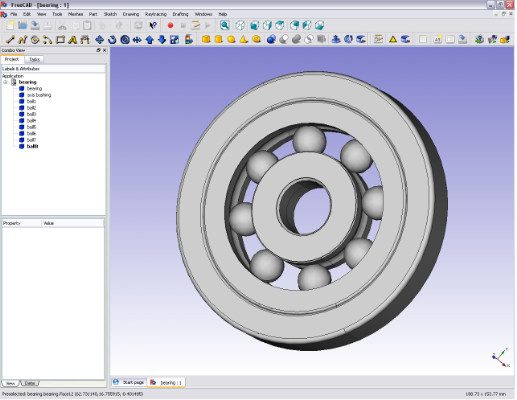
FreeCAD’s Part Design workbench lets you sketch 2D profiles and extrude, pocket, or revolve them into 3D objects — a professional-grade CAD workflow that’s standard in tools costing hundreds of dollars. It exports to STEP and STL, making it compatible with both engineering review workflows and direct slicer import.
Key Strengths:
- Completely free and open source — no subscription, no expiry
- True parametric modeling with editable constraints and dimensions
- STEP export for professional-grade interoperability
- Runs on Windows, Mac, and Linux
- Ideal for brackets, enclosures, replacement parts, and mechanical components
Weaknesses:
- Interface is dated and can feel unintuitive — especially coming from commercial CAD tools
- Occasional instability with complex models in older versions
- Steeper learning curve than Tinkercad
Best Print Types: Mechanical parts, brackets, enclosures, replacement hardware, anything requiring exact tolerances
Learning Curve: Medium — expect 3-6 hours to get comfortable, but you’ll quickly be able to design parts that actually fit.
✅ Is FreeCAD Right for You?
- You need precise measurements and tolerances
- You’re printing functional mechanical parts
- You want parametric editing capabilities
- You need STEP file export for engineering workflows
- You prefer open-source software
✅ 3DT Verdict
If you’ve graduated from Tinkercad and want to design parts that actually need to work — things that interface with other objects, fit into enclosures, or replace broken hardware — FreeCAD gives you professional-grade parametric CAD at zero cost. It’s not glamorous, but it gets the job done with real precision.
Fusion 360 — Best Professional CAD Software for 3D Printing
Best for: Prosumers, product designers, small business makers, Etsy sellers scaling production, and anyone running a CNC machine alongside their 3D printer
Fusion 360 is where hobbyist-level 3D printing meets professional-grade product design. It’s Autodesk’s cloud-based CAD/CAM platform, and it offers the most complete workflow for makers who take their craft seriously — whether that’s designing custom electronics enclosures, prototyping products for small-batch production, or running CNC jobs alongside their FDM printer.
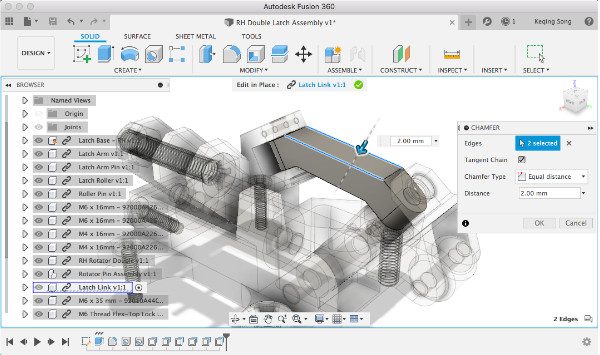
Like FreeCAD, Fusion 360 is parametric — but with a vastly more polished interface, built-in rendering, simulation tools, and CAM (computer-aided manufacturing) capabilities for CNC routing and milling. If your workshop has both a 3D printer and a CNC machine or laser engraver, Fusion 360 is the single tool that handles the design workflow for all of them.
💰 Pricing Note
Fusion 360 is free for personal/hobbyist use under Autodesk’s startup and hobbyist license, though some advanced features are paywalled. Small businesses pay a subscription. For most home makers and Etsy sellers, the free tier is more than sufficient.
Key Strengths:
- Industry-standard CAD/CAM in one platform
- Parametric modeling with timeline-based history for easy edits
- Built-in rendering and simulation
- Native CAM workflows for CNC, routing, and milling
- STEP and STL export — works with all major slicers
- Cloud storage and collaboration features
Weaknesses:
- Subscription-based for commercial use
- Requires internet for cloud-synced features
- Not ideal for pure artistic or organic sculpting work
Best Print Types: Functional engineering parts, enclosures, product prototypes, CNC-complementary designs
Learning Curve: Medium — 4-8 hours to get productive, but Autodesk’s tutorial library is exceptional.
✅ Is Fusion 360 Right for You?
- You’re running a small business or selling prints
- You need professional-grade CAD/CAM integration
- You use CNC machines alongside 3D printing
- You need cloud collaboration features
- You want advanced simulation and rendering tools
✅ 3DT Verdict
If you’re at the point where your 3D printing is more than a hobby — you’re selling prints, prototyping products, or running a small workshop — Fusion 360 is the upgrade that makes everything feel more professional. The CAM integration alone is worth it if you run any CNC equipment.
Best 3D Modeling Software for Miniatures
Miniature printing is its own discipline — and it demands different tools than functional FDM printing. You’re working with fine surface detail, organic curves, undercuts, and support-friendly geometry. The best 3D sculpting software for miniatures focuses on brush-based sculpting tools rather than parametric or geometric workflows.
Blender Sculpt Mode — Best Free Option for Miniatures
Blender’s Sculpt Mode transforms the software into a digital clay studio. You get dozens of specialized brushes — inflate, crease, grab, smooth, snake hook — that let you build up fine detail on character faces, armour textures, creature skin, and cloth folds. The dyntopo (dynamic topology) feature automatically adds geometry where you need detail and removes it where you don’t.
For resin printing miniatures at 28-32mm tabletop scale, Blender Sculpt Mode can produce print-ready STLs that rival commercial miniature files. The workflow takes practice, but countless miniature designers use nothing else.
Nomad Sculpt — Best for Miniatures on Android and iPad
Nomad Sculpt is a tablet-first sculpting app that has genuinely shocked the 3D community with how capable it is. It runs on Android and iPad, uses touch and Apple Pencil input, and delivers a sculpting experience that legitimately challenges desktop tools. The interface is clean, the brushes are responsive, and the export quality is excellent for resin miniature printing.
If you want to sculpt miniatures from your couch without sitting at a desktop computer, Nomad Sculpt is the answer. It’s not free — it’s a one-time purchase — but compared to the subscription cost of professional alternatives, it’s exceptional value.
ZBrush — The Professional Standard
ZBrush is the industry benchmark for high-detail digital sculpting. Professional miniature companies, game studios, and film prop designers use it to produce master files that get 3D printed at commercial scale. Its ZRemesher tool, dynamic subdivision levels, and specialized detail brushes are unmatched.
It’s expensive and has a steep learning curve, but if you’re creating miniatures to sell, licensing sculpts, or building a portfolio-level body of work, ZBrush is the professional ceiling. Maxon now offers it via subscription, which makes the entry cost lower than it used to be.
🖨️ Ready to print your miniatures?
Get the most from your sculpts with a high-resolution resin printer. We’ve tested the best options at every price point.
Best 3D Modeling Software by Platform
Not everyone is sitting at a desktop workstation. Here’s the best 3D modeling software for 3D printing depending on your device.
📱 iPad
Shapr3D — Top pick for precision CAD. Full parametric modeler built for touch and Apple Pencil.
Nomad Sculpt — Must-have for miniature sculptors with Apple Pencil support.
🤖 Android
Nomad Sculpt — Clear winner. Well-optimized for Android tablets and high-end phones.
🍎 Mac
Blender — Native Apple Silicon optimization.
Shapr3D — Native Mac app syncing with iPad.
Fusion 360 — Runs well on Mac.
🐧 Linux
Blender — Excellent native Linux support.
FreeCAD — Available through major package managers.
OpenSCAD — Code-based CAD for power users.
Best 3D Modeling Software for 3D Printing on iPad
The iPad has become a genuinely capable design workstation — especially with the M-series chips and Apple Pencil Pro.
Shapr3D is the top pick for precision CAD on iPad. It’s a full parametric modeler built specifically for touch and Apple Pencil workflows. You sketch with the Pencil, dimension your geometry with tap-to-edit fields, and export STEP or STL files that are ready for FDM printing. The interface is strikingly clean — it feels like it was designed for iPad from the ground up, because it was. It’s not free, but the experience is polished enough to justify the cost for serious users.
Nomad Sculpt is the other must-have for iPad — specifically for miniature sculptors and organic modeling. With Apple Pencil pressure sensitivity and a library of sculpting brushes, it turns the iPad into a portable sculpting station. Many professional miniature sculptors use it for roughing out concepts before finishing in desktop tools.
Best 3D Modeling Software for 3D Printing on Android
Nomad Sculpt is the clear winner on Android. It’s well-optimized for Android tablets and high-end phones, and it’s one of the few tools in this space that takes Android seriously. If you’re an Android user who wants to sculpt miniatures or organic models on the go, this is your only real premium option — and fortunately, it’s a very good one.
Best 3D Modeling Software for 3D Printing on Mac
Mac users have excellent options across the board. Blender runs natively and is optimized for Apple Silicon, delivering exceptional performance on M-series Macs. Shapr3D has a native Mac app that syncs seamlessly with its iPad version. Fusion 360 runs well on Mac, though with some historical quirks on Apple Silicon that Autodesk has largely addressed. For Mac users, the choice comes down to what you’re printing — artistic work favors Blender, precision work favors Shapr3D or Fusion 360.
Best 3D Modeling Software for 3D Printing on Linux
Linux users are well-served. Blender has excellent native Linux support and is a first-class citizen on the platform. FreeCAD runs natively on Linux and is available through most major package managers. OpenSCAD — a code-based CAD tool not yet covered in this guide — is also worth a look for Linux power users who are comfortable with a programming-style workflow. All three are completely free.
Parametric vs Mesh Modeling for 3D Printing — Which Do You Need?
This is the question most beginner guides skip over, and it’s one of the most important things to understand before choosing your software. Getting this right will save you hours of frustration.
| Feature | Parametric Modeling | Mesh Modeling |
|---|---|---|
| Best Software | FreeCAD, Fusion 360, Shapr3D | Blender, ZBrush, Nomad Sculpt |
| How It Works | Dimensions, constraints, relationships | Polygons, vertices, edges |
| Editing | Change one number, model updates everywhere | Push, pull, sculpt geometry directly |
| Best For | Functional parts, brackets, enclosures | Miniatures, art, organic shapes |
| Precision | High — exact measurements | Medium — visual approximation |
| Ideal Printer | FDM printers | Resin printers |
Parametric Modeling
Parametric CAD software — like FreeCAD and Fusion 360 — builds models from dimensions, constraints, and relationships. You define that a hole is 5mm in diameter, that a wall is 3mm thick, that two faces are parallel. The software tracks all of those relationships, so if you change one dimension, everything else updates accordingly.
This is the workflow for:
- Functional brackets and hardware
- Replacement parts for appliances, tools, or machines
- Enclosures for electronics
- Anything that needs to interface precisely with another physical object
- Parts that might need revision — change 5mm to 6mm in one click
Parametric modeling is dimension-driven, logical, and revision-friendly. It’s the right choice for engineering-style prints on FDM printers.
Mesh Modeling
Mesh-based tools — like Blender and ZBrush — work with polygons, vertices, and edges. You push and pull geometry into shape, subdivide surfaces to add detail, and sculpt with brushes the way a sculptor works with clay. There are no dimensional constraints; you’re working visually and intuitively.
This is the workflow for:
- Miniatures and figurines
- Artistic sculptures and busts
- Organic characters — creatures, characters, fantasy figures
- Decorative objects where appearance matters more than dimension
- Cosplay props and wearable prints
Mesh modeling is fluid, artistic, and well-suited to resin prints where fine surface detail is the goal.
🎯 The Bottom Line
If you’re printing parts, use parametric. If you’re printing art, use mesh. Many experienced makers know both — and that’s the goal to work toward.
2026 Workflow: Designing for Bambu Lab and Modern Slicers
The 3D printing landscape has shifted significantly with the rise of Bambu Lab printers and the Bambu Studio ecosystem. If you’re using a Bambu X1E, P1S, or A1-series printer — or planning to — here’s what you need to know about software compatibility.
The good news: every tool on this list works with Bambu Studio. Bambu Studio accepts STL, OBJ, and 3MF files natively, and all major 3D modeling tools export at least STL. If you’re exporting from Blender, Tinkercad, FreeCAD, or Fusion 360, your files will open in Bambu Studio without any conversion step.
A few workflow notes worth knowing:
- 3MF is the preferred format for Bambu Studio — it preserves more metadata than STL. Fusion 360 and Shapr3D can export 3MF directly.
- Bambu Studio has basic primitive editing tools built in — you can scale, split, and mirror models inside the slicer without going back to your modeling software.
- MakerWorld, Bambu’s model-sharing platform, hosts thousands of community designs. It’s worth searching here before modeling something from scratch.
- For multi-colour or multi-material prints on AMS-equipped Bambu printers, you’ll want to design with that workflow in mind — Bambu Studio’s painting tools can handle some of this, but pre-separated STL bodies from Fusion 360 or Blender give you more control.
The shift to Bambu’s ecosystem also means that slicer fluency is almost as important as modeling fluency. Once you’ve chosen your modeling tool, pair it with our guide to the best slicer software for 3D printing to complete your workflow setup.
Frequently Asked Questions
What is the best free 3D modeling software for 3D printing?
Blender is the best overall free option for 3D printing — it handles both mesh modeling and sculpting, runs on all platforms, and exports print-ready STL files. For functional engineering parts specifically, FreeCAD is the best free parametric CAD software available. Both are completely open source with no subscription or expiry.
What is the easiest 3D modeling software for beginners?
Tinkercad is the easiest 3D modeling software for 3D printing beginners by a significant margin. Its browser-based, drag-and-drop interface has the lowest learning curve of any tool on this list, and most users can design and export their first print-ready STL within 15-30 minutes of signing up. It’s free and requires no download.
What is the best 3D modeling software for 3D printing miniatures?
Blender’s Sculpt Mode and Nomad Sculpt are the best options for 3D printing miniatures. Blender is free and available on all desktop platforms; Nomad Sculpt is a paid app for iPad and Android. For professional-grade miniature sculpting, ZBrush is the industry standard used by major miniature companies and game studios.
Can I design 3D prints on an iPad?
Yes — Shapr3D and Nomad Sculpt are both excellent tablet-first 3D modeling apps for iPad. Shapr3D is best for precision CAD work with Apple Pencil and exports STEP and STL files. Nomad Sculpt is best for sculpting miniatures and organic models. Both support Apple Pencil for pressure-sensitive input.
What 3D modeling software works with Bambu Studio?
All major 3D modeling tools that export STL, OBJ, or 3MF files work with Bambu Studio — which covers every tool in this guide. Tinkercad, Blender, FreeCAD, Fusion 360, Shapr3D, and Nomad Sculpt all export compatible formats. For the best Bambu Studio integration, use 3MF format where available, as it preserves more model data than STL.
Is parametric or mesh modeling better for 3D printing?
It depends on what you’re printing. Parametric modeling — used in FreeCAD and Fusion 360 — is better for functional parts, brackets, and anything that requires precise dimensions. Mesh modeling — used in Blender and ZBrush — is better for miniatures, sculptures, and artistic prints. Many experienced makers learn both workflows over time.
What is the best 3D modeling software for 3D printing on Linux?
Blender and FreeCAD are the top choices for Linux users. Both have native Linux support, are completely free and open source, and are available through most major package managers. OpenSCAD is also worth considering for Linux users comfortable with a code-based CAD approach.
Ready to Start Printing? Here’s Your Next Step
You’ve got the software knowledge — now the rest comes down to pairing it with the right hardware and workflow. Here’s a quick recap:
- Beginner? Start with Tinkercad today. It’s free, browser-based, and you’ll have your first file ready to print in under 30 minutes.
- Want to print miniatures? Download Blender or grab Nomad Sculpt and start sculpting. Match it with a quality resin printer and the results will surprise you.
- Need functional, precise parts? FreeCAD is your free entry point. Fusion 360 is your upgrade path when you need professional-grade tools.
- On iPad or Android? Shapr3D for precision, Nomad Sculpt for sculpting. Both are worth every cent.
⚡ Pro Tip
The single biggest mistake new 3D printing enthusiasts make is spending weeks choosing software instead of just starting. Pick the tool that fits where you are right now — you can always migrate later. The skills you build in Tinkercad transfer to FreeCAD. The eye you develop in Blender carries into ZBrush. Start printing.
🖨️ Complete Your 3D Printing Setup
Software is only half the equation. Find the right printer, slicer, and filament to match your new workflow — and get to your first successful print faster.
“I started with Tinkercad and printed my first phone stand within an hour. Six months later, I’m designing functional brackets in FreeCAD for my workshop. This guide helped me pick the right tool at every step.”

