


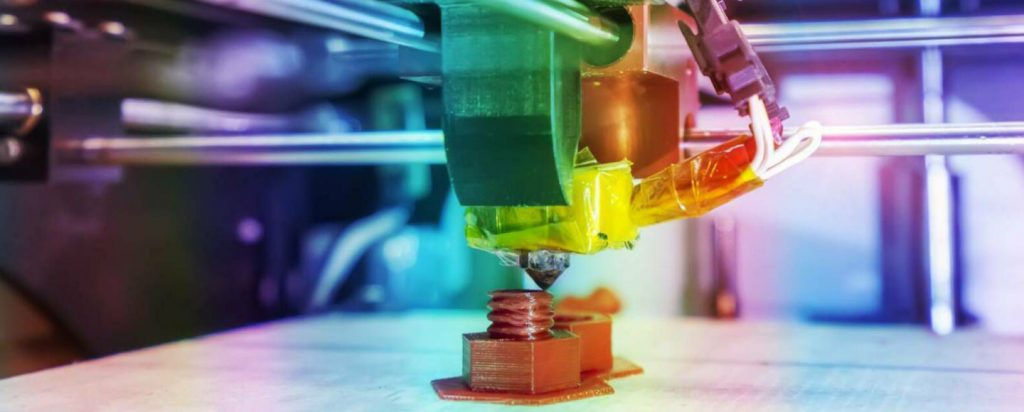
Quick Answer: If you just want a straight answer before diving in: OrcaSlicer is the best slicer for 3D printing in 2026 for most FDM users. It has the best built-in calibration tools, the smoothest seam control, and works with virtually every printer on the market.
Download OrcaSlicer Free →Free • Open Source • Windows/Mac/Linux
If you own a Bambu Lab printer, stick with Bambu Studio — the AMS integration alone makes it worth it. And if you’re into resin printing, Lychee Slicer is the one most experienced resin printers swear by.
Table of Contents
- Why Your Slicer Matters More Than You Think
- Top Picks at a Glance
- The Slicer Family Tree
- OrcaSlicer Review (Best Overall)
- Bambu Studio Review (Best for Bambu)
- PrusaSlicer Review (Most Reliable)
- Cura Review (Best for Beginners)
- Lychee Slicer Review (Best for Resin)
- CHITUBOX Review
- Best Slicer by Printer Brand
- Best Slicer by Operating System
- OrcaSlicer vs Cura vs Bambu Studio
- What to Look For in a Slicer
- Final Verdict & Recommendations
- Frequently Asked Questions
🎯 Free Download: Slicer Selection Cheat Sheet
Can’t decide which slicer to use? Get our printable decision tree + quick-start profiles for the top 4 slicers. Instant PDF download.
Why the Slicer Matters More Than Most People Think
A slicer is the software that takes your 3D model and converts it into a language your printer understands — a long string of movement instructions, temperatures, speeds, and fan settings called G-code. The slicer decides:
- How your model gets sliced into layers (and how thick those layers are)
- Where supports get placed — and how easy they are to remove
- How visible the seam lines are on your finished print
- How fast the printer moves and how it handles corners
- Whether you get ugly stringing between parts or clean results
- How dimensionally accurate your parts come out
- Whether surfaces have ringing artifacts or look smooth
Best 3D Printing Slicer Software — Top Picks at a Glance
Here’s a quick comparison of the top slicers in 2026:
| Slicer | Best For | Standout Feature | Learning Curve |
|---|---|---|---|
| OrcaSlicer | Best overall / enthusiasts | Built-in calibration + scarf seams | Medium |
| Bambu Studio | Bambu Lab owners | Wireless + AMS workflow | Low |
| PrusaSlicer | Reliability / open-source users | Organic supports | Medium |
| Cura | Beginners / older printers | Plugin marketplace | Low |
| Lychee Slicer | Resin printing | Auto orientation | Medium |
| CHITUBOX | Resin compatibility | Native SLA workflows | Low |
Now let’s dig into each one properly.
The Slicer Family Tree (A Quick History That Actually Helps)
Before we get into the reviews, it helps to understand where these slicers came from — because it explains why several of them look and feel similar.
It all starts with Slic3r, one of the original open-source slicers. Prusa Research took Slic3r and rebuilt it into PrusaSlicer, adding a better UI and powerful features like organic supports. When Bambu Lab launched, they forked PrusaSlicer into Bambu Studio, tailoring it for their ecosystem. And then the community took Bambu Studio’s codebase and built OrcaSlicer on top of it — adding even more advanced calibration and tuning tools.
This family tree matters because it means switching between these slicers isn’t as painful as you’d think. Your muscle memory carries over. The settings logic is similar. The profiles are often compatible. It also means OrcaSlicer tends to inherit improvements from the broader ecosystem faster than any other slicer.
1. OrcaSlicer — Best Overall Slicer for 3D Printing
If you’re asking what the best slicer for 3D printing is in 2026, OrcaSlicer is the answer for the overwhelming majority of FDM users.
Here’s why: it’s not just a slicer — it’s a complete printer tuning toolkit. Most slicers give you a way to prepare files. OrcaSlicer gives you that plus a full suite of built-in calibration tests that you can run directly from the software. We’re talking:
- Pressure Advance / Linear Advance calibration — fine-tunes how your extruder handles speed changes at corners and sharp direction changes. Get this right and you’ll eliminate bulging corners and inconsistent lines almost entirely.
- Flow rate calibration — makes sure the right amount of filament is actually being extruded. One of the most overlooked sources of bad print quality.
- Retraction tuning — directly addresses stringing issues. Run the built-in test, find your sweet spot, save the profile.
- Temperature towers — find the best printing temperature for any filament automatically.
- First layer calibration — get your Z offset dialed in with live adjustment.
That alone would make OrcaSlicer worth using. But there’s more.
Why OrcaSlicer Wins in 2026
The 2025–2026 updates have pushed OrcaSlicer ahead in several key areas:
Scarf seams and seam painting. Seams — where each layer starts and ends — used to be one of the most visible artifacts on any print. OrcaSlicer’s scarf seam feature blends that transition point so smoothly that it becomes almost invisible on most models. And if you want more control, seam painting lets you manually tell the slicer exactly where you want seams placed on your model. This is a feature that costs money in some commercial slicers. In OrcaSlicer, it’s just… there.
Improved tree supports. Organic-style tree supports that touch the model in fewer places, making support removal cleaner and leaving less scarring on surfaces.
Small object detection. Automatically slows print speed on small objects to prevent heat buildup — critical if you’re printing lots of small detailed parts.
Thin wall handling. Better bridging and perimeter logic for fine details and thin-walled models.
Klipper integration. If you’re running Klipper firmware (increasingly common on Ender 3s and other printers after upgrade), OrcaSlicer’s Klipper support is exceptional. Pressure advance, input shaping — OrcaSlicer handles the integration cleanly.
OrcaSlicer works great as the best slicer for Ender 3 owners, best slicer for Creality printers of all kinds, and also does an excellent job with FlashForge machines. It’s genuinely one of those tools where once you use it for a week, you won’t want to go back.
- ✅ You want the best print quality possible
- ✅ You’re willing to spend time on calibration
- ✅ You have an FDM printer (any brand)
- ✅ You’re running or planning to run Klipper
- ✅ You want advanced features without paying
- ❌ You need resin printing support (not available)
- ❌ You want the absolute simplest setup
Cost: Free and open source.
2. Bambu Studio — Best for Bambu Lab Printers
If you own a Bambu Lab printer — a P1S, X1C, A1 Mini, or any other machine in their lineup — Bambu Studio is the best slicer for you. Period.
Yes, OrcaSlicer also works well with Bambu printers. But Bambu Studio has deep native integration that makes day-to-day printing feel effortless in a way that third-party slicers can’t fully replicate.
Here’s what makes Bambu Studio special for Bambu owners:
AMS (Automatic Material System) integration. The AMS lets you print with up to 16 different filament colors or materials in a single print. Bambu Studio manages the entire multi-material workflow — purging, color mapping, filament profiling — in a way that feels genuinely seamless. Setting this up in OrcaSlicer is possible, but Bambu Studio makes it brain-dead simple.
One-click wireless printing. Slice your model, hit print, and it sends wirelessly to your printer. No SD cards, no USB drives. The live camera feed, print monitoring, and notifications all work natively through Bambu Studio.
MakerWorld integration. Bambu’s model-sharing platform integrates directly with Bambu Studio. You can find community-tested profiles for specific filaments, discover and import models, and share your own prints — all from within the slicer.
Rock-solid native profiles. Every Bambu printer has first-party tested profiles built right in. No hunting for community profiles or tweaking defaults. It just works.
But if you’re printing on Bambu hardware and want the smoothest, most integrated workflow available? Bambu Studio is unbeatable.
3. PrusaSlicer — Best for Reliability and Open-Source Purists
PrusaSlicer might not be the flashiest option in 2026, but it’s one of the most trusted. There’s a reason experienced makers keep coming back to it even as newer options emerge.
Stability is its superpower. PrusaSlicer has been through years of testing with an enormous user base. It’s reliable, predictable, and produces consistent results. If you’ve set it up once and tuned your profiles, you can trust it to behave the same way every single time.
Zero cloud dependency. Everything runs locally on your machine. No accounts, no internet required, no subscription model. For makers who care about privacy and self-sufficiency, this matters a lot.
Organic supports. PrusaSlicer was one of the early adopters of organic tree-style supports, and they’re still excellent. On complex models with lots of overhangs, PrusaSlicer’s supports are easy to set up and relatively clean to remove.
No ecosystem lock-in. PrusaSlicer works with virtually any FDM printer and doesn’t push you toward any particular hardware ecosystem.
Excellent community profiles. The profile library for PrusaSlicer is vast. Most popular printers have well-maintained community profiles tested by people who actually use the hardware.
The learning curve is moderate — roughly the same as OrcaSlicer. And while it doesn’t have OrcaSlicer’s built-in calibration test suite, it does include solid first-layer calibration and a well-organized profile system.
Cost: Free and open source.
4. Cura — Best Free Slicer for Beginners and Legacy Printers
Cura is probably the most widely used slicer in the world, and that’s not an accident. For years, it was the go-to recommendation for anyone just getting into 3D printing — and for many users, especially beginners and people running older hardware, it still is.
Here’s where Cura genuinely shines:
Best-in-class ease of use. The interface is clean, the workflow is intuitive, and the default settings produce good results without much tweaking. If you want to be making decent prints within an hour of installing your slicer, Cura is your best bet.
The plugin marketplace. This is Cura’s secret weapon. The Marketplace has dozens of community-built plugins that add features, support new printers, improve specific workflows, and extend functionality in ways the stock software can’t. It’s like an app store for your slicer.
Best for Older and Budget Hardware
If you’re running an older Ender 3 V1, a CR-10, or any printer running stock Marlin firmware without upgrades, Cura is almost certainly your best starting point. It has excellent legacy Marlin support, a massive community, and profile options for printers that haven’t been made in years. The other slicers in this list have caught up in many ways, but Cura’s compatibility with older hardware is unmatched.
Massive profile ecosystem. Hundreds of printers have first-party or community profiles in Cura. It’s the reference point most printer manufacturers start with when releasing their own slicer or printer profile.
Strong community support. Because so many people use Cura, the community knowledge base is enormous. Whatever problem you’re having, someone has probably already solved it and posted the answer.
But for someone who just unboxed their first printer? Cura is still the best free slicer for beginners, and it makes a lot of sense as a first stop.
- ✅ You just bought your first 3D printer
- ✅ You have an older printer (Ender 3 V1, CR-10, etc.)
- ✅ You want to start printing within an hour
- ✅ You value plugin extensibility
- ❌ You’ve upgraded to Klipper firmware
- ❌ You want advanced calibration tools
Cost: Free and open source.
5. Lychee Slicer — Best Slicer for Resin Printing
If you’re printing in resin — whether that’s an Elegoo Mars, an Anycubic Photon, or any MSLA/LCD machine — you’re in different territory entirely. FDM slicers don’t apply here. You need a purpose-built resin slicer, and in 2026, Lychee Slicer is the community favourite.
Here’s what makes Lychee the best slicer for resin printing:
Auto-orientation. One of the most important and finicky parts of resin printing is figuring out how to angle your model for the best results — minimizing suction forces, reducing support scarring, and avoiding print failures. Lychee’s auto-orientation algorithm handles this intelligently and usually gets it right the first time.
Smart support generation. Resin supports are thinner and more precise than FDM supports. Lychee’s support tools let you place them manually or generate them automatically, with fine-grained control over tip size, density, and contact points.
Island detection. “Islands” are the bane of resin printing — unsupported areas that float in mid-air and cause failed prints. Lychee scans your supported model and flags any remaining island areas before you ever hit print.
Hollowing. Printing solid resin parts is expensive and slow. Lychee’s hollowing tools let you automatically hollow out solid models and add drain holes so uncured resin doesn’t get trapped inside.
Resin trap checks. Closed internal cavities fill with liquid resin and can explode during washing. Lychee’s resin trap detection catches this before it becomes a messy (and wasteful) problem.
Broad printer compatibility. Lychee supports an enormous range of MSLA/SLA printers, including virtually every Elegoo and Anycubic machine. It’s the best slicer for Elegoo resin printers and a top choice for Anycubic resin users too.
Cost: Free tier available; paid premium subscription for full features.
6. CHITUBOX — Best Native Resin Workflow
CHITUBOX is the other major player in resin slicing, and for a long time it was the default recommendation before Lychee caught up. It’s still an excellent choice, particularly if you want a simpler, more straightforward experience.
CHITUBOX’s biggest strength is its deep native support for the CTB file format used by Chitu Systems motherboards — which power a huge proportion of budget resin printers, including most Elegoo and Anycubic machines. This native compatibility means you get precise exposure and timing settings tailored to each specific printer.
Lychee vs. CHITUBOX — Quick Comparison:
| Feature | Lychee Slicer | CHITUBOX |
|---|---|---|
| Auto orientation | Excellent | Basic |
| Support generation | Advanced | Good |
| Island detection | Yes | Basic (Pro version) |
| Hollowing | Yes | Yes |
| UI | Modern | Functional |
| Price | Free / Premium | Free / Pro |
| Printer profiles | Broad | Very broad |
The short version: CHITUBOX is a solid, reliable choice with excellent printer compatibility. Lychee edges it out in automation and intelligence, especially for users who want to minimize trial and error. If you’re new to resin printing, CHITUBOX’s simpler interface may feel less overwhelming at first — and it’s a completely valid starting point.
Cost: Free version available; CHITUBOX Pro for advanced features.
Best Slicer by Printer Brand
Best Slicer for Ender 3
The Ender 3 is one of the most popular 3D printers ever made, and it’s supported by essentially every FDM slicer. Here’s the breakdown:
- OrcaSlicer — Best option for tuned or upgraded Ender 3s, especially those running Klipper firmware. Built-in calibration is a game-changer for getting the most out of this printer.
- Cura — Still the best slicer for stock Ender 3 setups and beginners. Massive profile library, easy setup.
- PrusaSlicer — Great middle ground. More control than Cura, familiar to anyone who’s used it before.
Best Slicer for Creality Printers
Creality has also released its own slicer called Creality Print, which is fine as a starting point but generally falls behind the community options. For any Creality printer:
- OrcaSlicer — Top recommendation for any Creality FDM machine.
- Cura — Excellent compatibility with older Creality hardware.
- Creality Print — Usable, but not worth choosing over the above for most users.
Best Slicer for Bambu Lab
- Bambu Studio — Best for AMS multi-material workflows and native integration.
- OrcaSlicer — Excellent alternative if you want more advanced calibration tools. Works very well with Bambu printers.
Best Slicer for Anycubic
- FDM printers (Kobra series): OrcaSlicer or Cura work best.
- Resin printers (Photon series): Lychee Slicer or CHITUBOX — both have strong Anycubic support.
Best Slicer for Elegoo
- FDM printers (Neptune series): OrcaSlicer or Cura.
- Resin printers (Mars / Saturn series): Lychee Slicer is the community favourite; CHITUBOX is a solid alternative.
Best Slicer for FlashForge
- OrcaSlicer — Has been rapidly improving FlashForge compatibility and is now the top community pick.
- FlashPrint — FlashForge’s native slicer. Less feature-rich but works without configuration.
Best Slicer by Operating System
Best Slicer for Mac
Good news for Mac users: all of the major slicers run natively on macOS, and in 2026 the Apple Silicon support is excellent.
OrcaSlicer and PrusaSlicer both have native Apple Silicon (M1, M2, M3, M4) builds. They’re fast, responsive, and don’t require Rosetta 2 translation. Cura also runs well on modern Macs. Bambu Studio runs natively on Apple Silicon too — Bambu has invested in Mac support for their growing user base.
Best Slicer for Linux
Linux is well supported across the major slicers:
- OrcaSlicer — AppImage available, works reliably across major distros.
- Cura — AppImage, Flatpak, and Snap packages available. Probably the broadest Linux support.
- PrusaSlicer — AppImage, also available in some distro repositories.
For most Linux users, Cura tends to be the easiest to install and keep updated via Flatpak. OrcaSlicer is worth the slightly more manual setup if you want the full calibration toolkit.
Best Slicer for Chromebook
This one’s more complicated. ChromeOS doesn’t natively support most desktop slicers — but it’s not impossible to make it work.
Your options:
- Linux (Beta) / Crostini environment — If your Chromebook supports Linux apps (most modern ones do), you can install Cura or OrcaSlicer through the Linux container. Performance depends heavily on your hardware.
- Cloud-based slicing — Some online slicers like Kiri:Moto and PrusaSlicer’s web version work directly in the browser with no installation required.
- Remote desktop — Slice on a Windows or Mac machine, control it remotely from your Chromebook using Chrome Remote Desktop.
OrcaSlicer vs. Cura vs. Bambu Studio — Head-to-Head
This is the comparison most people are actually trying to make when they search for the best 3D printing slicer software. Here’s an honest breakdown:
| Feature | OrcaSlicer | Cura | Bambu Studio |
|---|---|---|---|
| Ease of use | High | Very high | Very high |
| Built-in calibration | Best | Basic | Good |
| Legacy printer support | Good | Best | Medium |
| AMS / MMU support | Excellent | Limited | Best |
| Seam control | Best | Good | Good |
| Open source | Yes | Yes | Partial |
| Plugin ecosystem | Growing | Best | Limited |
| Klipper support | Excellent | Good | Limited |
| Resin support | No | No | No |
| Platform support | Win/Mac/Linux | Win/Mac/Linux | Win/Mac/Linux |
The Honest Take:
If you want the best combination of power, features, and community support in 2026 — OrcaSlicer is the clear winner for FDM printing.
If you’re brand new and just want things to work without much fiddling — Cura gets you printing faster.
If you own a Bambu printer and want the most seamless experience with AMS — Bambu Studio is the right call.
These aren’t mutually exclusive, either. Many experienced makers keep two slicers installed: OrcaSlicer for tuned workflows, Cura as a quick fallback for older files or new printers.
Things to Look For in a Slicer (Buying Guide Mindset)
Even though most of these slicers are free, choosing the wrong one for your setup costs you time and frustration. Here’s what to actually evaluate:
- Printer compatibility. Does the slicer have a profile for your specific printer model? Using a well-tested profile as a starting point saves hours of dialing in.
- Calibration tools. The more you care about print quality, the more you’ll value built-in calibration. OrcaSlicer leads here — there’s no real competition.
- Support generation quality. Supports are often the most annoying part of 3D printing. A slicer with better support algorithms will save you time on every complex print.
- Update frequency. Active development means bug fixes, new features, and compatibility with new hardware. OrcaSlicer and Cura both update regularly.
- Community size. A large community means more answered questions, more shared profiles, and more tutorials. Cura and OrcaSlicer both have large, active communities.
- Your filament types. If you’re printing in exotic materials — high-temp filaments, flexible TPU, PA-CF — make sure your slicer has profiles or settings that support those materials properly.
A great slicer takes you a long way — but it works best when the rest of your setup is dialled in too.
If you’re still running whatever filament came in the box with your printer, you’re leaving quality on the table. Investing in a quality filament brand makes a noticeable difference in surface finish, dimensional accuracy, and consistency. Check out our best filament guide for tested recommendations across PLA, PETG, ABS, ASA, and more.
And if you haven’t levelled up your printer yet, the slicer can only do so much. Our best 3D printers for beginners guide covers what to look for if you’re shopping for a new machine, and our Ender 3 V4 COMBO review dives deep into whether that classic is still worth buying in 2026.
For Bambu Lab fans, our Bambu printer reviews compare the full lineup so you know exactly which model fits your budget and needs.
Final Verdict — Best Slicer for 3D Printing in 2026
Let’s make this as clear as possible:
- Built-in calibration tools
- Scarf seam technology
- Excellent Klipper support
- Active community development
- Works with all FDM printers
- Easiest learning curve
- Massive plugin marketplace
- Best legacy printer support
- Huge community
- Start printing in under an hour
- Native AMS integration
- Wireless printing
- MakerWorld built-in
- Seamless workflow
- First-party profiles
- Auto-orientation
- Island detection
- Smart supports
- Hollowing tools
- Resin trap checks
🚀 Ready to Upgrade Your Prints?
Download OrcaSlicer today and run the built-in calibration tests. You’ll see the difference in your very first print. It’s free — you’ve got nothing to lose and print quality to gain.
Frequently Asked Questions
What is the best slicer for 3D printing in 2026?
The best slicer for 3D printing in 2026 is OrcaSlicer for most FDM users. It combines a clean modern interface with a full suite of built-in calibration tools — including pressure advance, flow rate, and retraction tests — that no other free slicer currently matches. It works with virtually every FDM printer on the market, has excellent Klipper support, and is updated frequently by an active open-source community. If you own a Bambu Lab printer, Bambu Studio is the better fit due to its native AMS integration. For resin printing, Lychee Slicer is the top pick.
Is OrcaSlicer better than Cura?
For most users in 2026, yes — OrcaSlicer is the better slicer. It has more advanced calibration tools, superior seam control (including scarf seams), better Klipper support, and more frequent updates with modern features. Where Cura still wins is ease of use for absolute beginners, its plugin marketplace, and compatibility with older legacy printers running stock Marlin firmware. If you’re new to 3D printing and just want to start quickly, Cura is a great first step. But if you’ve been printing for a few months and want to level up your print quality, OrcaSlicer is the upgrade worth making.
What slicer should I use for Ender 3?
The best slicer for an Ender 3 depends on your setup. If you’re running a stock Ender 3 with original Marlin firmware and you’re newer to the hobby, start with Cura — it has the best profile ecosystem for legacy Creality hardware and the lowest learning curve. If your Ender 3 has been upgraded with a direct drive extruder, all-metal hot end, or — especially — Klipper firmware, switch to OrcaSlicer. The built-in pressure advance and flow calibration tools will immediately show the difference. PrusaSlicer is also a solid middle-ground option for Ender 3 users who want more control without the full OrcaSlicer learning curve.
What is the best slicer for resin printers?
The best slicer for resin printers is Lychee Slicer. It leads the field with intelligent auto-orientation, smart support generation, island detection, hollowing tools, and resin trap checks — all features that directly reduce failed prints and wasted resin. It supports a wide range of MSLA/SLA printers including most Elegoo and Anycubic machines. CHITUBOX is the other major contender and is worth considering for its very broad printer compatibility and simpler interface — it’s a particularly good starting point for first-time resin printers. Both have free tiers, with paid upgrades available for more advanced features.
Is Bambu Studio better than OrcaSlicer?
It depends entirely on what printer you own. For Bambu Lab printers, Bambu Studio is the better daily driver — its wireless printing, native AMS multi-material workflow, and MakerWorld integration are all tightly built around the Bambu ecosystem in ways OrcaSlicer can’t fully replicate. For any non-Bambu FDM printer, OrcaSlicer is the stronger choice. It has more powerful calibration tools, better seam control, and broader community support outside the Bambu ecosystem. Many Bambu owners actually keep both installed: Bambu Studio for quick AMS prints, OrcaSlicer for deep tuning sessions.
Which slicer is best for Mac?
All the major slicers run on macOS, but the best experience in 2026 goes to OrcaSlicer and PrusaSlicer — both have native Apple Silicon builds optimized for M1, M2, M3, and M4 Macs. They’re fast, responsive, and don’t require Rosetta 2 translation. Bambu Studio also runs natively on Apple Silicon. Cura works well on modern Macs too, though its performance on Apple Silicon has historically been slightly behind the others. If you’re on a Mac and running any non-Bambu FDM printer, OrcaSlicer’s native ARM build is the best overall experience available.
The Bottom Line
You don’t need to spend money to get the best slicer for 3D printing. The software that will most dramatically improve your prints is OrcaSlicer — and it’s completely free. Download it, spend an afternoon running the calibration tests, and you’ll wonder why you waited.
If you’re also in the market for a new printer to go with your new slicer, now’s a great time to browse. The combination of a well-tuned printer and a properly calibrated slicer profile produces results that would have required much more expensive hardware just a few years ago. Check out our best resin printers guide if you’re thinking about branching out into resin, or our Klipper setup guide if you’re ready to take your existing printer to the next level.
Start printing better today. No credit card required.
Last updated: 2026. Software versions and features change frequently — always check the official GitHub pages and changelogs for the latest updates.